
Short answer
Decide on simple rules first (keep, delete, favorite, album), then work through one month at a time, starting with the oldest. Mark your favorites before deleting anything. Once you’re caught up, spend five minutes now and then on just the photos that are new since last time.
Decide your rules: keep, delete, favorite, album
Sorting goes fastest when every photo gets one of four answers and you don’t have to think about what they mean. A simple checklist:
- Delete: blurry or dark shots, accidental photos, near-identical takes (keep the best one), screenshots you no longer need.
- Keep: anything you’d be sad to lose. When in doubt, keep it.
- Favorite: the best shot of each moment, the ones you’d show someone.
- Album: things you’ll want to find together later, such as a trip, documents or a project.
You make these calls, not an app. No tool knows that a blurry photo is the only one of a day you want to remember.
Work month by month
A whole library is overwhelming. A month is small enough to finish in one sitting, and finished months stay finished. Start with the oldest months: they’re the ones you look at least, so they’re the easiest to cut.
Both Photos on iPhone and Google Photos show your library as a timeline grouped by date, so you can scroll to a month and work through it. Keep sessions short and stop at the end of a month.
Protect your favorites first
Before you delete in bulk, mark the photos you love so they’re easy to spot and hard to lose.
- iPhone: tap the heart on a photo. Favorites collect in the Favorites collection (Collections → Pinned → Favorites).
- Google Photos: open a photo and tap the Favorite button. Favorites get their own collection.
Sort into albums as you go
Albums work differently on the two systems:
- iPhone: an album is a list. A photo can be in several albums at once, and deleting it from your library removes it from every album.
- Android: in gallery apps an album is usually a folder on the phone. Adding a photo either copies or moves the file (Samsung Gallery asks which); in Shoo the file moves. Google Photos also has its own albums, which only exist in Google Photos.
A 5-minute habit: only what’s new
Once you’re caught up, keeping things tidy takes a few minutes a week. Go through only the photos added since last time, while you still remember why you took them. The newest photos are always at the end of the timeline, so the built-in apps work fine for this too.
Set your swipes in Shoo
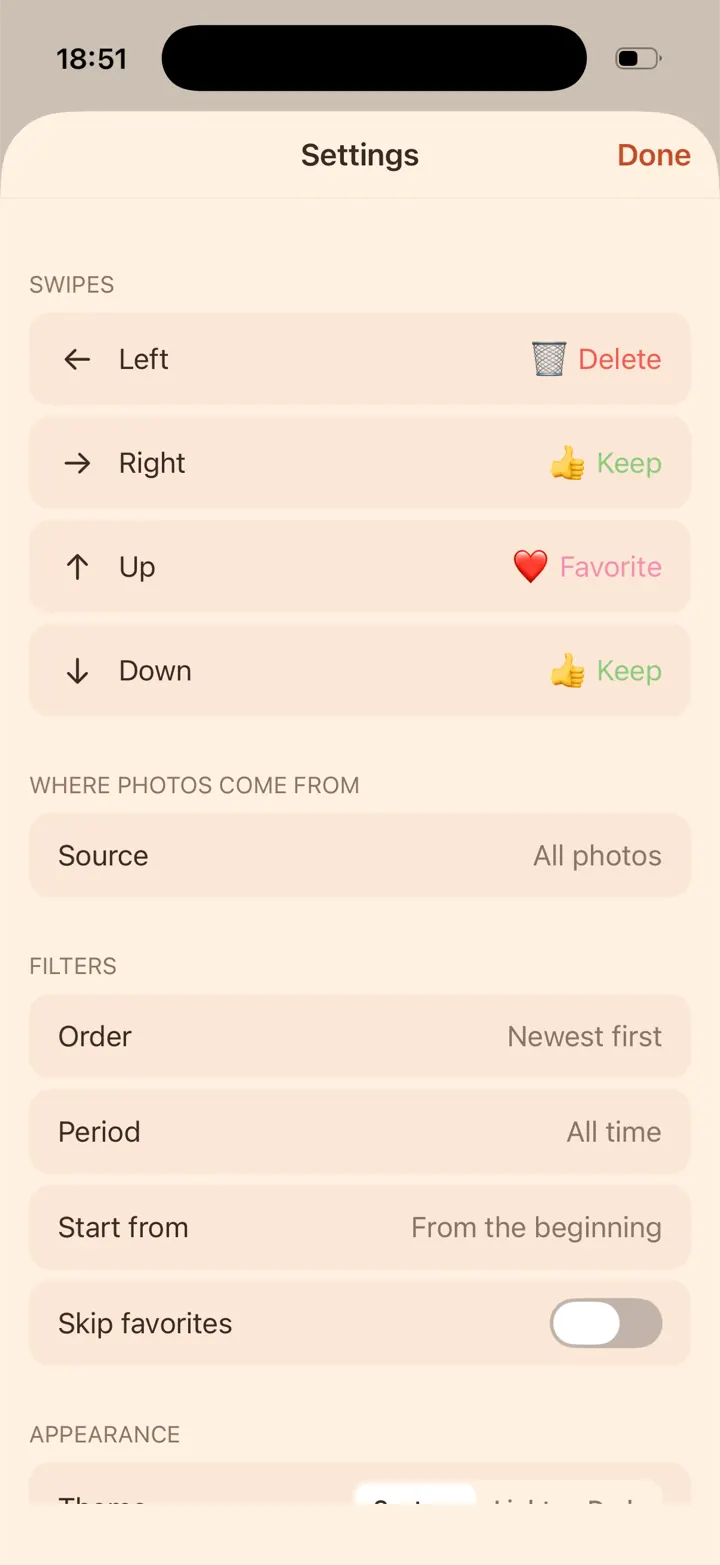
Shoo turns these rules into gestures. It shows one photo or video at a time, and each of the four swipe directions does what you choose:
- Swipes: map left, right, up and down to keep, delete, favorite, or an album you pick or create.
- Start from: begin at a particular month. With Oldest first, cards go forward in time from there.
- Skip favorites: keeps favorites out of the cards. If you swipe a favorite to delete, Shoo asks first.
- New since last session: the 5-minute habit, built in.
- Undo steps back through your swipes. Progress is saved on your phone, and Settings → Progress → Reset reviewed starts over.
A few limits: on iPhone, choosing albums and adding photos to them need full photo access. On Android, favorites need Android 11 or newer, an album is a folder (so the photo moves into it), and the date filters skip photos without a capture date. More about swipes in Shoo.



iPhone version coming soon.
Questions
How long does it take to clean up a camera roll?
It depends on the size of your library. Doing one month at a time keeps each session short and manageable, and after the first pass, only new photos need a look.
Will my albums sync to iCloud?
Yes, with iCloud Photos on. Albums you create or add to sync to your other devices like any change in Photos, including albums you fill with Shoo.
Does Shoo upload or scan my photos?
No. Shoo works offline and has no servers, accounts, analytics or ads. It never uploads your photos or videos anywhere. Privacy policy.