
Short answer
Open Settings → Storage to see how much your photos and videos take. Empty the trash in Google Photos and in your phone’s Gallery app, because deleted items keep using space there for 30 days. If you back up to Google Photos, tap your profile photo → Free up space on this device to remove copies that are already backed up. Then delete old videos and screenshots folder by folder, starting with the Camera folder.
See what’s using storage
Start by checking how much space photos and videos actually take, so you know whether cleaning them is worth it.
- Open the Settings app and tap Storage.
- Tap a category such as Images or Videos to see what’s inside.
Menu names vary by phone maker. On Samsung Galaxy phones, go to Settings → Battery and device care → Storage. Many phones also have the Files by Google app: its Clean screen suggests junk files, duplicates, large files and old screenshots to remove. Files it deletes are gone for good.
Empty the trash in Google Photos and your Gallery app
Deleting a photo often doesn’t free space right away. Google Photos and most gallery apps first move it to a trash, where it keeps taking up space until the trash is emptied.
Google Photos
- Open Google Photos, tap Collections at the bottom, then Trash.
- Tap the More button (⋮), then Empty trash, and confirm with Delete permanently.
Google Photos keeps deleted photos and videos in the trash for 30 days, then deletes them for good. Deleting in Google Photos removes the item from your phone, your Google Photos account and every device where backup is on.
Samsung Gallery and other gallery apps
- Open Gallery, tap the menu (☰) and choose Trash.
- Touch and hold an item, select the rest, then tap Delete. Depending on your phone, the ⋮ menu may also offer Empty.
Samsung Gallery keeps deleted files in its trash for 30 days. Gallery apps from other makers usually have a similar Trash or Recently deleted album in their menu or albums list.
Google Photos “Free up space”: what it really removes
If you back up to Google Photos, it can remove the copies on your phone of photos and videos that are already backed up. Tap your profile photo or initial, choose Free up space on this device, check how much space you’ll get back and confirm.
- What it removes: the copies on this phone of items that are already backed up.
- What stays: the backups in your Google Photos account, which you can still open in the app and on photos.google.com. Items less than 30 days old may stay on the phone.
- The catch: removed items no longer show up in your phone’s built-in gallery, or anywhere when you’re offline or signed out of Google Photos.
If you don’t back up to Google Photos, this option frees nothing, and the cleanup has to happen in the files on your phone.
Delete old videos and screenshots folder by folder
On Android, photos and videos are files in folders, and gallery apps show each folder as an album. The biggest ones are usually these:
- DCIM/Camera: everything you shot with the camera, including long videos.
- Pictures/Screenshots (on some phones DCIM/Screenshots): screenshots. See how to delete screenshots.
- Movies: videos saved by some apps.
- Messenger folders such as WhatsApp Images and WhatsApp Video: photos and videos people sent you, often memes or copies of things you already have.
Open one album at a time in Google Photos or your Gallery app, go to the oldest items, select what you don’t need and delete it. Then empty the trash.
To stop chats from filling your gallery again, turn off automatic media downloads in your messengers. In WhatsApp it’s Settings → Storage and data → Media auto-download.
Swipe through your gallery with Shoo
Folders mix keepers with clutter, so deleting a whole folder rarely works. Shoo shows one photo or video at a time as a card: swipe to keep it or to queue it for deletion, and pick what each of the four directions does. A few settings turn it into a quick storage cleaner:
- Source: a folder, such as Camera, Screenshots or a messenger folder.
- Longest videos first: shows only videos, the longest at the top.
- Older than 30 days: leaves your recent shots alone.
On Android, date filters go by the capture date. Images saved from messengers and many screenshots don’t have one, so use All time for those folders.
Swipes only queue deletions. Review the queue as a grid, open any item full screen, restore what you want to keep, and tap Undo to step back through your swipes.
On Android, deleting in Shoo is permanent. There’s no trash to restore from, so Shoo asks you to confirm first, and on Android 11 and newer the system asks too. Check the queue before you tap Delete all.
Shoo works with the files on your phone. It doesn’t manage Google Photos or any other cloud backup. Favorites need Android 11 or newer. How deleting works in Shoo.
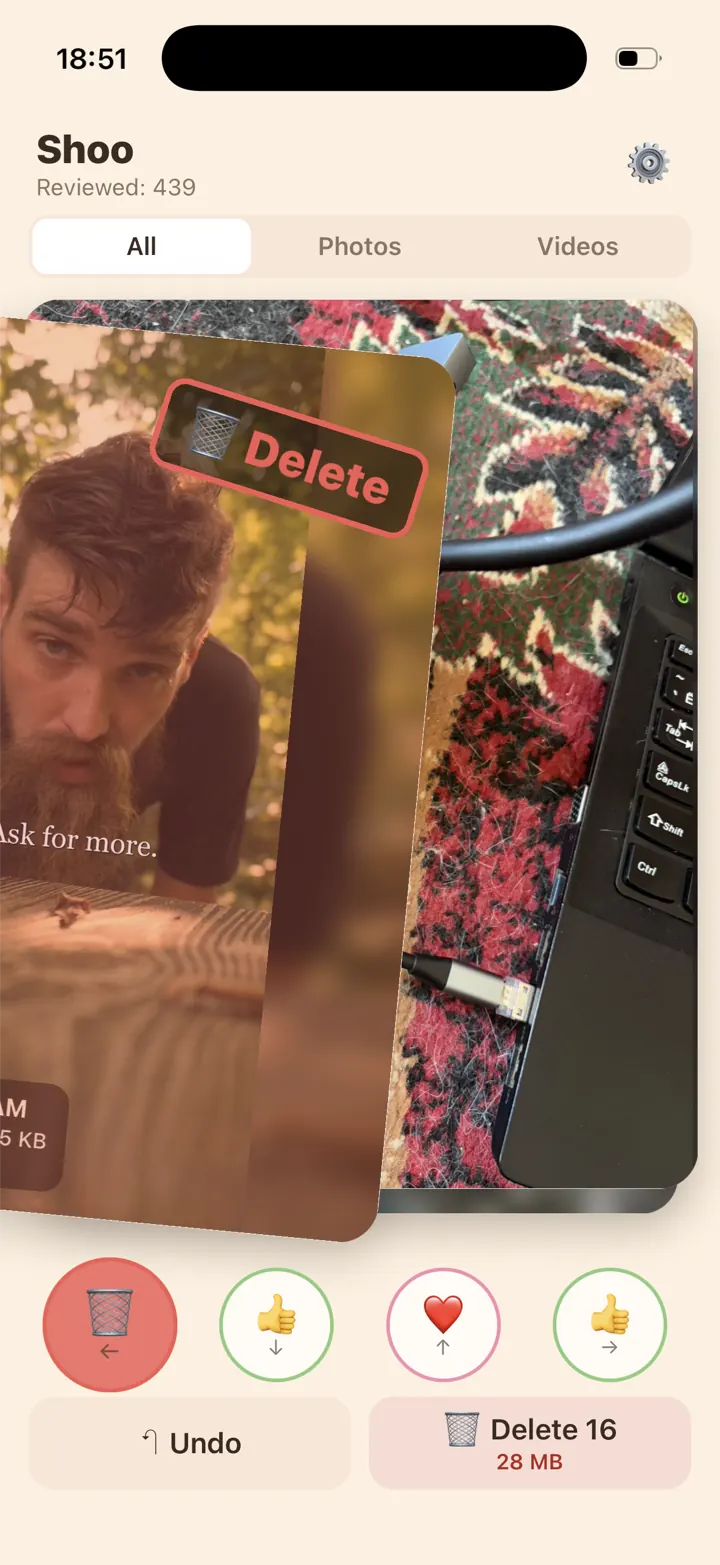



iPhone version coming soon.
Questions
I deleted photos. Why is my storage still full?
They’re probably in a trash. Empty it in Google Photos (Collections → Trash) and in your Gallery app. Files deleted with Shoo or Files by Google don’t go to a trash, so their space comes back right away.
Will deleting photos on my phone delete my Google Photos backup?
Not when you delete with Shoo: it works with the files on your phone and doesn’t touch your Google Photos account, so a copy that’s already backed up stays there. Deleting in the Google Photos app is different: a backed-up item deleted there is removed from your phone, your account and every device with backup on.
Can I recover photos deleted in Shoo on Android?
No. Shoo deletes files directly, without a trash, so they’re gone from the phone. Review the queue before you delete. A copy you backed up earlier, for example in Google Photos, isn’t affected.
Sources
- Android Help: Free up storage on your Android device
- Google Photos Help: Delete photos and videos
- Google Photos Help: Free up space on your device
- Files by Google Help: Clear your junk files
- Samsung Support: Use the trash feature of the Gallery app
- Samsung Support: What is Device Care and how do I use it?
- WhatsApp Help: How to configure auto-download