
Short answer
In the Photos app, tap Select and drag a finger across the thumbnails to select many photos at once, or open an album or a Media Types collection (such as Videos or Screenshots) and tap Select All. Then tap the trash button. Deleted items wait in Recently Deleted for 30 days and still use space, so empty it to get the storage back now.
Select many photos at once in the Photos app
The quickest built-in way to select hundreds of photos is to drag across them instead of tapping each one.
- Open Photos and go to your library, the grid of all your photos and videos.
- Tap Select in the top-right corner.
- Touch the first photo and, without lifting your finger, drag sideways across the row, then down the screen. Every photo you pass gets selected, and the grid keeps scrolling while your finger is near the edge.
- Tap any photo you want to keep to deselect it, then tap the trash button and confirm.
Select All inside an album or Media Types
The main library has no Select All button, but most albums and collections do. That makes them the fastest way to clear out one kind of item, such as every screenshot or every video.
- In Photos, tap Collections, scroll down and tap Media Types. Choose a type such as Videos, Screenshots or Bursts. Or tap Albums and open one of your albums.
- Tap Select, then Select All.
- Scroll through the selection and tap anything you want to keep to deselect it.
- Tap the trash button and confirm.
On older iOS versions without the Collections tab, scroll down the main Photos screen or open Albums to find Media Types. In an album you made yourself, choose Delete, not Remove from Album: removing only takes the photo out of that album and it stays in your library.
Decide photo by photo with swipes (Shoo)
Bulk selection is blunt. A year of photos mixes the shots you love with blurry ones and repeats, and it’s easy to catch a keeper in a big selection. Shoo shows one photo or video at a time as a card. By default you swipe left to queue it for deletion, right to keep it and up to add it to Favorites, and you can change what each of the four directions does, including sending it to an album.
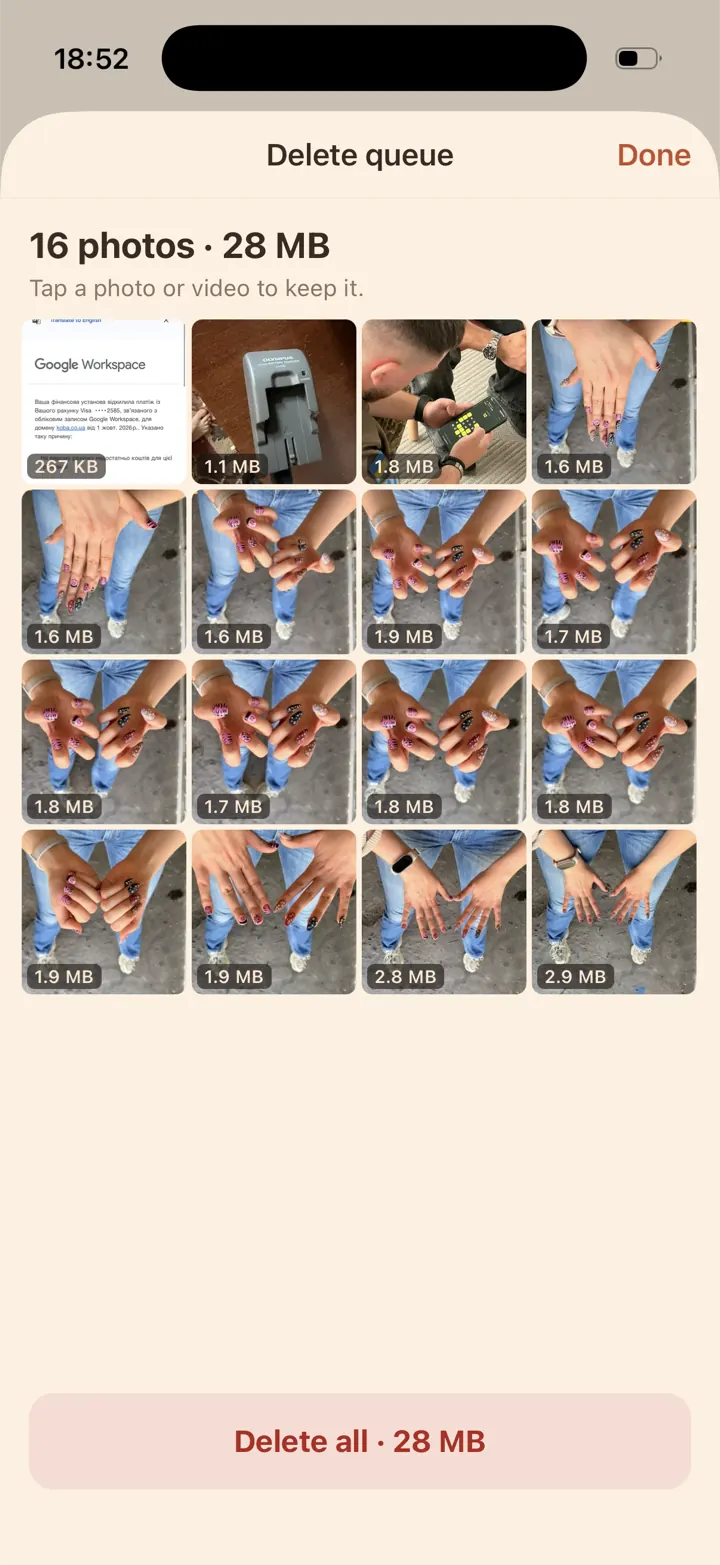
Swipes only queue deletions. When you’re ready, open the queue: it’s a grid you can check, where you can tap any item to see it full screen, restore it or delete just that one. Tap Delete all and iOS asks you to confirm in its own dialog. Deleted items go to Recently Deleted, like any deletion in Photos. How deleting works in Shoo.
What Shoo doesn’t do: it doesn’t find duplicates and doesn’t manage iCloud storage. For exact copies, use the Duplicates collection under Utilities in Photos.



iPhone version coming soon.
Why storage doesn’t drop yet: Recently Deleted
Deleted photos and videos move to the Recently Deleted collection and stay there for 30 days, so your free storage doesn’t change right away. To get the space back now:
- In Photos, tap Collections, scroll down to Utilities and tap Recently Deleted.
- Tap View Album and unlock it with Face ID, Touch ID or your passcode.
- Tap Select, then the More button (•••), and choose Delete All.
- Confirm. With iCloud Photos on, the button reads Delete from All Devices.
Until you empty it, anything there can be brought back: select it, tap the More button and choose Recover. Once it’s emptied, the photos are gone unless you have a backup.
Shoo reminds you of this too: on iPhone, a note under the space-freed figure says the space fully frees up once Recently Deleted is emptied.
Deleting with iCloud Photos turned on
With iCloud Photos on, your iPhone and iCloud hold the same library. Deleting a photo on your iPhone also deletes it from iCloud and from your other devices signed in to the same Apple Account. That’s true whether you delete in Photos or in Shoo.
There is no way to delete a photo “from iPhone only” while iCloud Photos is syncing. If you want to keep a copy, export it to a computer or another storage service first, then delete it.
Short on iPhone space but want to keep everything? Turn on Optimize iPhone Storage (Settings → your name → iCloud → Photos; in iOS 27 or later, then iPhone Storage). Your iPhone then keeps smaller, space-saving versions while the full-resolution originals stay in iCloud.
Questions
Can I select all photos in my whole library at once?
No. The main library has no Select All button. Drag across the grid to select many photos quickly, or use Select All inside an album or a Media Types collection such as Videos or Screenshots.
How long does Recently Deleted keep photos?
30 days. After that they’re removed for good from your iPhone, iCloud and your other devices. Empty Recently Deleted sooner if you need the space now.
Will deleting photos free iCloud storage too?
Yes, if iCloud Photos is on. Deleting on your iPhone removes the photos from iCloud as well, and the space is freed once they leave Recently Deleted.
Is there a limit to how many photos I can delete at once?
Apple doesn’t document a limit on how many photos you can select and delete at once. A very large selection, in the thousands, can take a while to process, so deleting in smaller batches is often smoother.